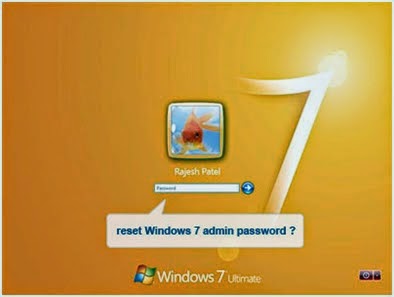
Method 1: Reset the Windows 7 password with a password reset disk
In general, when people forgot the password, people will think of password reset disk. Microsoft recommends users to create a password reset disk for emergency, this is the best solution to reset the password with a prerequisite of creating a password reset disk.
1. Insert your USB or DVD/CD. Open Control Panel
2. Click User Accounts and Family Safety, and then click User Accounts. In the left pane, click “Create a password reset disk”, and then follow the instructions. Make sure you store the password reset disk in a safe place.
The disk works perfectly to recover Windows password. It is also useful for administrator password recovery, you can write it to a blank CD/DVD or USB flash drive to recover administrator password. Booting up and clearing a password
Method 2: Reset Windows 7 Standard and Guest account password by lusrmgr.msc
This is an easy method, but the administrator access is required. If you can login to your computer with another administrator account, do it as below:
Step 1: Press Win Key and type “lusrmgr. msc” in the Search box, press Enter
Then Local Users and Groups open. Please type the password or provide confirmation.
Step 2: Choose Local Users and Groups, and then click Users.
Step 3: Choose account that you need to reset the password, and click “Set Password”. Type the password that you want to set, confirm it.
Method 3: Use command prompt to recover Windows 7 password
Step 1: Login your Windows as administrator(You also can logon Safe Mode with Command Prompt, pressing F8 when restart your computer, hit up/down key to choose Safe Mode with Command Prompt and hit Enter).
Step 2: Click on Start, type “cmd” in the Search box and press Enter.
Step 3: Type net user, all user accounts on your computer will be listed.
Step 4: Type net user "username" "new password "(replace username and new password with yours), press Enter, then the password will be reset as new one and you can logon Windows 7 with it.
Method 4: Use Windows password reset tools
If you want to reset standard account or guest account password, it is easy to use another administrator account to reset Windows 7 user password. But as for the administrator, you have to reinstall Windows or choose a Windows password recovery tool. Fewer people want to reinstall Windows for resetting password.
There are free and charged tools, free tools are also playing a role, but with less safety and efficiency, these free tools like Offline NT Password may damage your important files and may waste much time to crack your computer
Windows Password Recovery Tool is the best resetting Windows password tool for charge I have tried. It sells with lower price than other similar software. With easy and safe operation, no files damaged, this tool is 100% working to reset Windows 7 administrator password quickly
Step1: Download and install Windows Password Recovery Tool (four editions Optional matches your need)
Step2: Burn an available CD/DVD or USB. (A USB flash CD/DVD drive should be with enough space.)
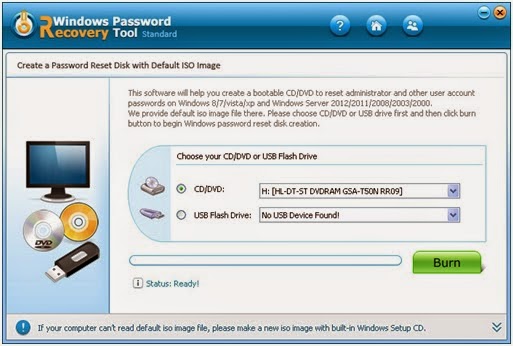
Step 3: Set your target computer to boot from CDROM or USB flash drive
Step 4: Reset your Windows 7 password. Insert the burned CD/DVD or USB flash drive into the locked computer.
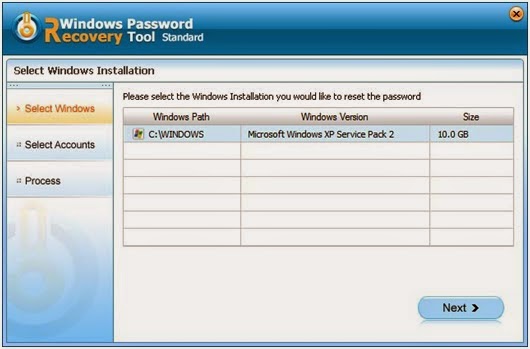
Step 5: Select the target Windows system you want to reset the password for on the start page
Step 6: Select the user account whose password you want to reset
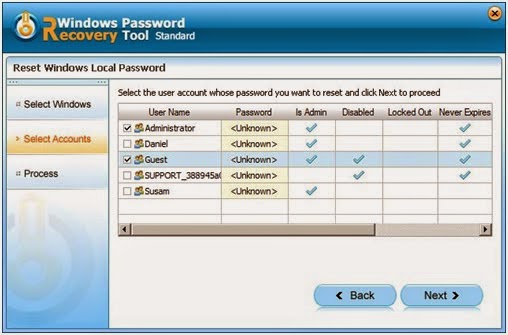
And now you have reset the password successfully.
(More details about operating you can visit www.windowspasswordrecovery.com)
Above are useful methods to reset forgotten Windows 7 password instead of reinstalling Windows, choose a suitable method for your computer when you forget the Windows 7 password.
Tips:
1. Create a Windows password disk for emergency.
2. Backing up your Windows 7 password safely on other place.
3. Asking for help to Windows Password Recovery Tool.

